Microsoft Entra ID (Azure AD) Data Import Integration
Overview
RedFlag supports nightly recipient data sync from Microsoft Entra ID (formerly Azure AD) through a dedicated enterprise application called RedFlag Data Import.
Once enabled, your Microsoft 365 administrator will grant consent to the RedFlag Data Import enterprise app within your Entra tenant. This establishes a secure connection between your directory and your RedFlag location.
After authorization, administrators can:
- Select which users to import
- Sync Entra ID groups into RedFlag
- Map standard and custom security attributes
- Configure ongoing nightly sync settings
The RedFlag Data Import enterprise app handles authentication and background data synchronization. Proper permission configuration is required to ensure recipients and groups sync successfully.
🛡️ Note: Microsoft Entra ID Data Import must be enabled by RedFlag for your account before setup can begin. Contact your onboarding specialist or support representative to enable this feature.
Grant Microsoft Admin Consent
Once the feature is enabled:
- Log in to RedFlag.
- Navigate to More > Integrations > Azure AD.
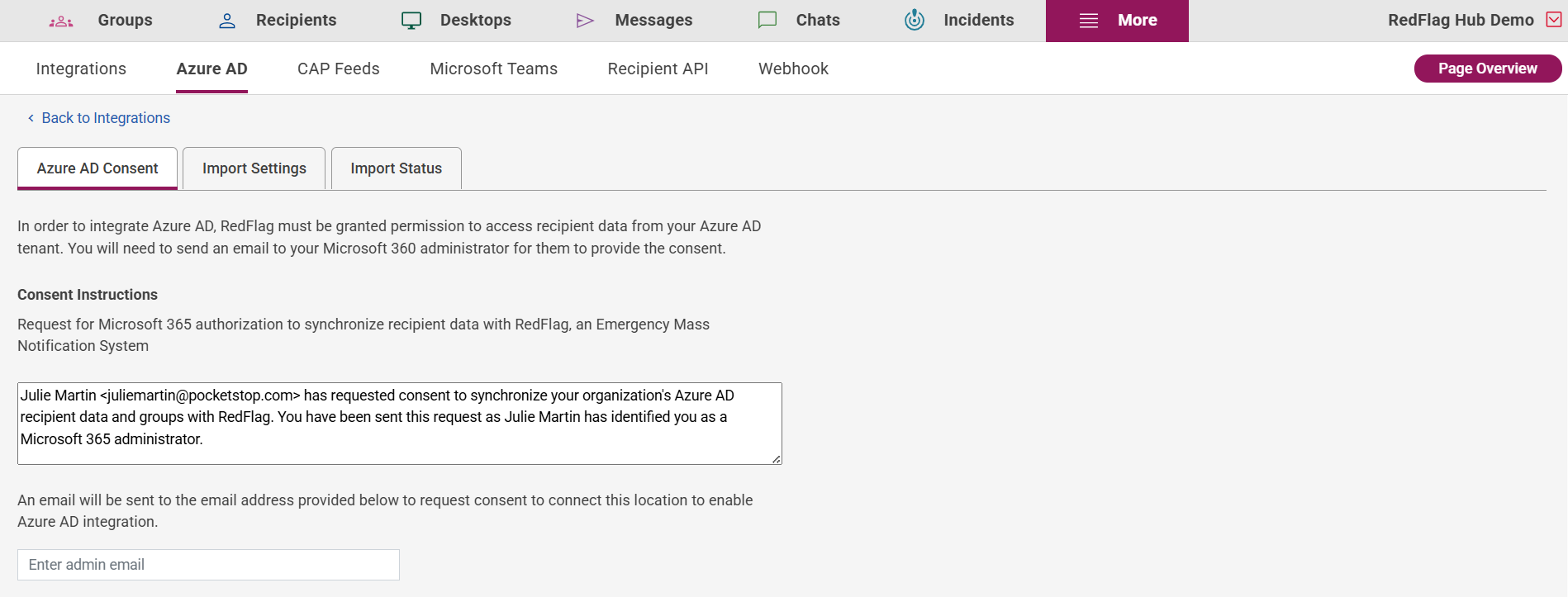
- Under the Consent tab:
- Enter the Microsoft 365 Administrator’s email address.
- Click Send Consent to initiate the connection request.
- Optionally edit the instructions provided to the administrator.
🛡️ Note: Admin consent must be granted before any recipients can be imported.
App Permissions Required
To enable Microsoft Entra ID (Azure AD) data import into RedFlag, specific API permissions must be granted to the RedFlag Data Import enterprise application within your tenant.
There are two types of permissions required:
- Delegated Permission – Used during the authentication and sign-in process.
- Application Permissions – Used by RedFlag to securely sync data in the background without a signed-in user.
Both permission types must be granted and display Admin Consented in Microsoft Entra for the integration to function properly.
Required Permissions
Permission: User.Read
Type: Delegated
Reason: Enables user sign-on. In addition, RedFlag pulls the tenantId to match against an existing RedFlag location.
Permission: User.Read.All
Type: Application
Reason:Required to sync recipient profiles from Entra ID into RedFlag.
Permission: Group.Read.All
Type: Application
Reason: Required to sync Entra ID groups into RedFlag.
Permission: CustomSecAttributeAssignment.Read.All
Type: Application
Reason: Required to pull profile data stored as custom security attributes. Many organizations store email addresses and/or phone numbers as security attributes.
Permission: CustomSecAttributeDefinition.Read.All
Type: Application
Reason: Required so RedFlag administrators can map custom security attribute values to RedFlag data elements.
Troubleshooting Permission Issues
If your Microsoft administrator has provided consent but:
- The integration is not showing as connected, or
- The integration is showing as “Connected” but data is not syncing,
please complete the following steps:
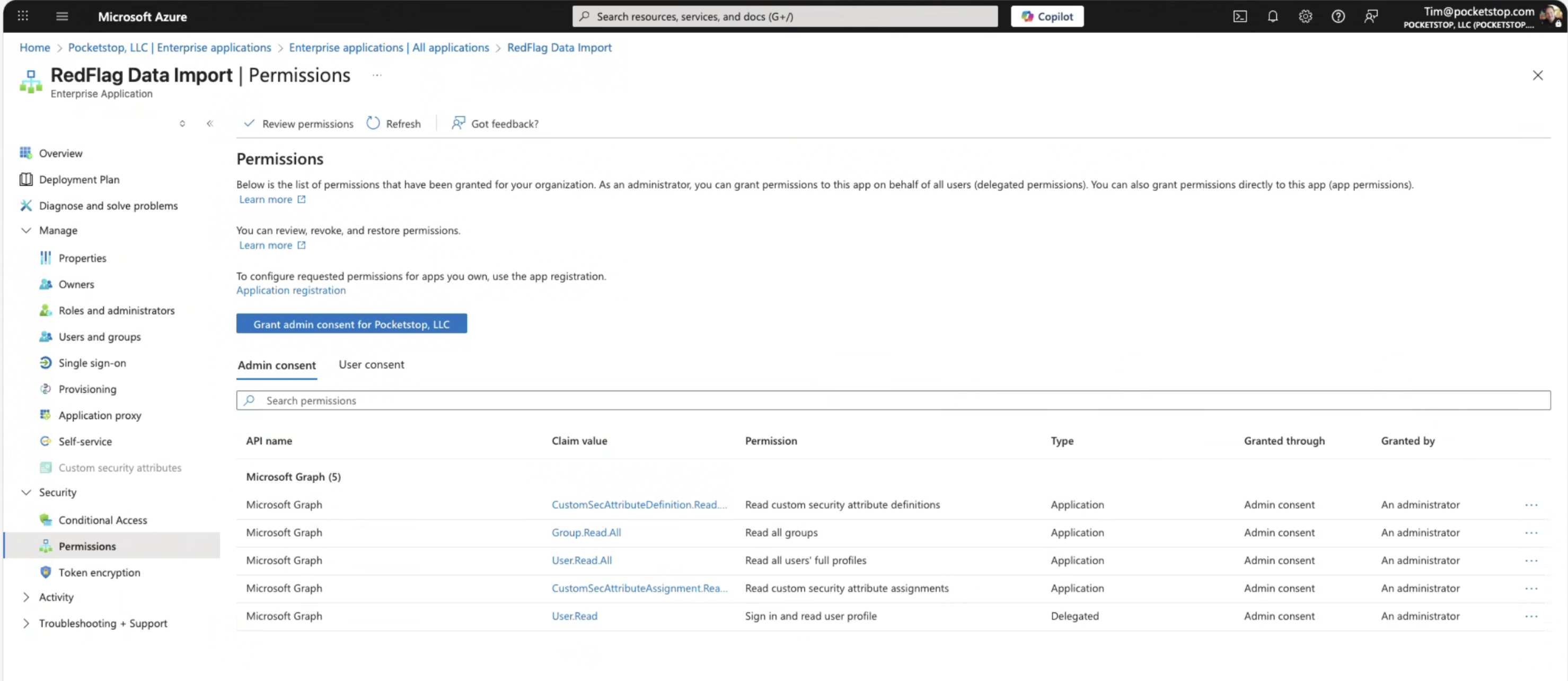
- Log into Microsoft Entra ID.
- Navigate to Enterprise Applications.
- Select RedFlag Data Import.
- Go to Permissions.
- Confirm that all required permissions show “Granted for [Your Organization]” under the Admin Consent column.
If any permissions do not display as admin consented, your Microsoft Entra Global Administrator will need to grant consent again.
🛡️ Note: Even if consent was previously granted, missing application permissions will prevent background data synchronization from occurring.
Configure Import Settings
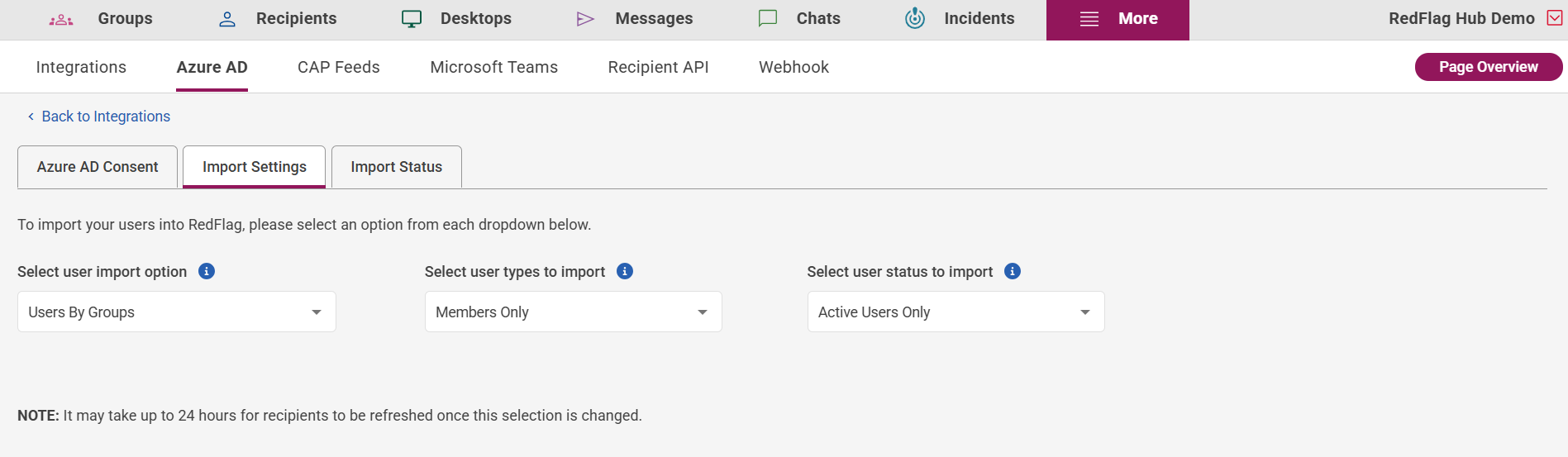
Under the Import Settings tab, define how RedFlag should import users:
- User Import Option
- All Users: Import everyone in your directory.
- Users by Groups: Only import users within selected synced groups.
- User Types to Import
- Members Only
- Guests Only
- Members and Guests
- User Status to Import
- Active Users Only
- Active and Inactive Users
All three settings must be configured before syncing can begin.
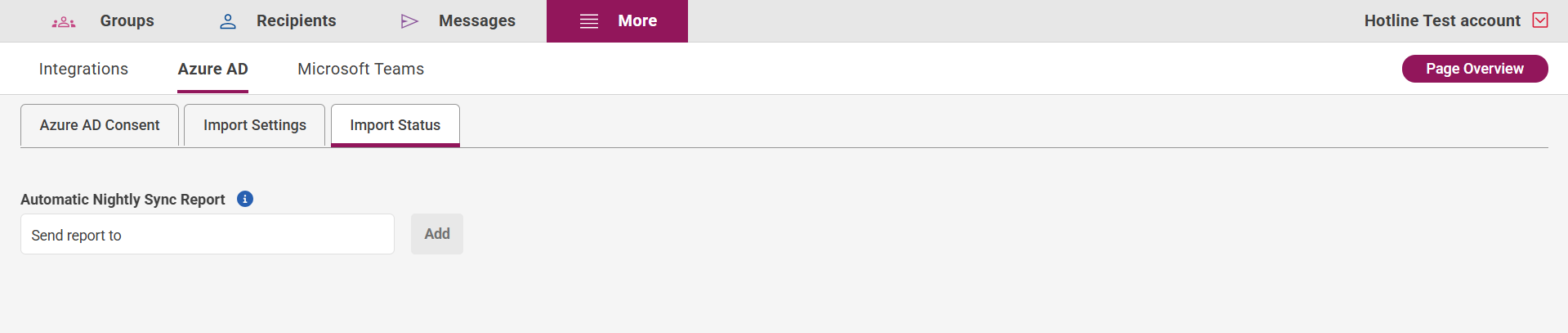
Set Up Import Status Notifications
Under the Import Status tab:
- Enter one or more email addresses to receive the nightly sync report.
Map RedFlag Data Fields to Microsoft Entra ID Fields
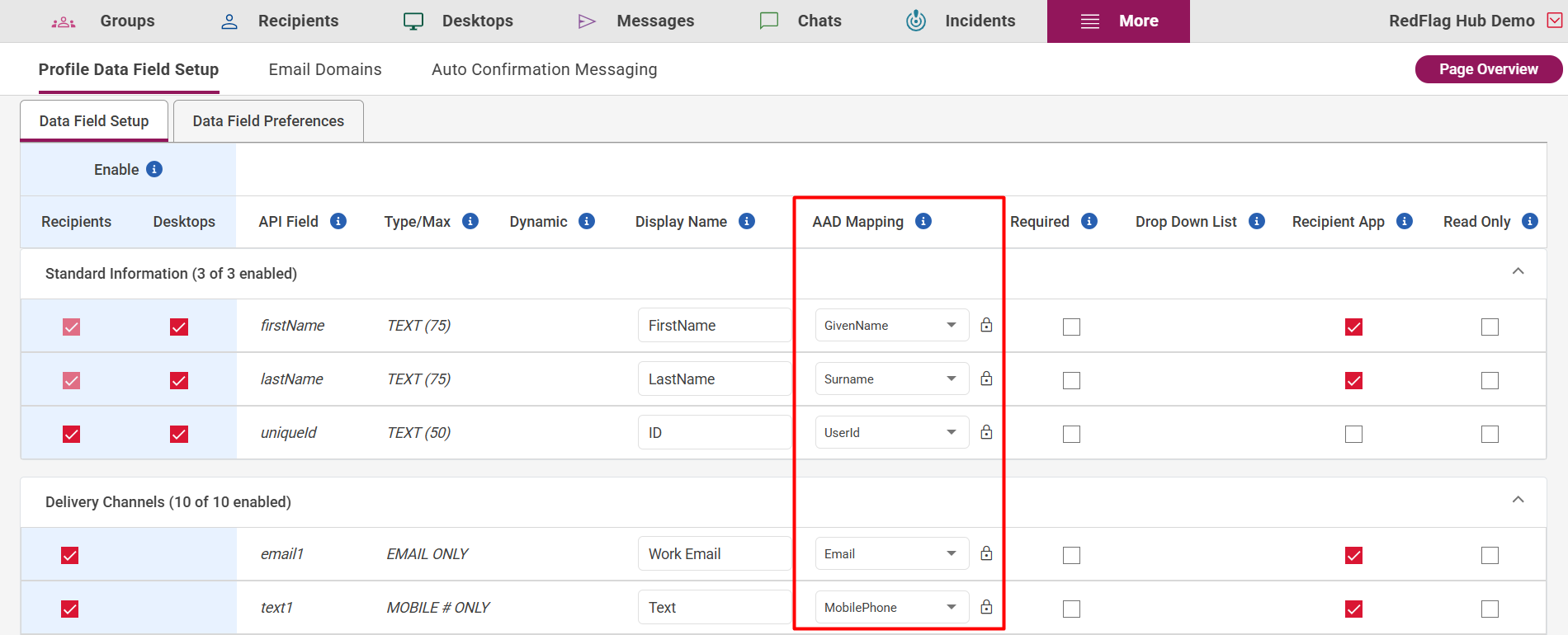
Once consent has been granted and RedFlag is connected:
- Go to More > Setup > Profile Data Field Setup.
- Enable the desired RedFlag fields using the checkboxes on the left.
- Use the dropdown menu to map each field to its corresponding Microsoft Entra ID field.
🛡️ Note: The Unique ID field is required and must be mapped to one of the following:
UserIdEmployeeIdUserPrincipalName
If a field is used only for manual entry or API import and not passed from Microsoft Entra ID, you may leave it set to Not Mapped.
Import Users by Groups (If Selected)
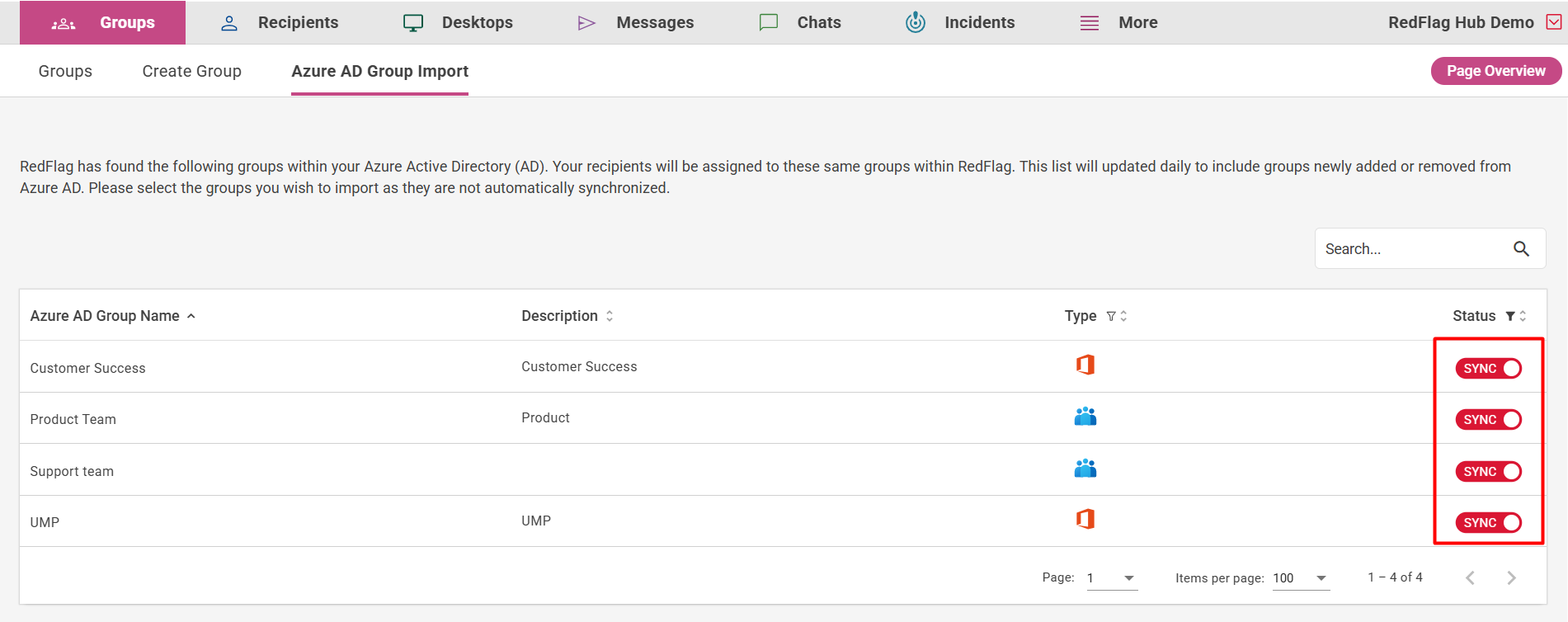
If Users by Groups was selected as the import option:
- Navigate to Groups > Azure AD Group Import.
- Select the desired groups to sync.
- If groups are nested in Azure, each group will have its own row to sync. Syncing a main group will not sync the nested groups by default.
Only users in the selected groups will be imported.
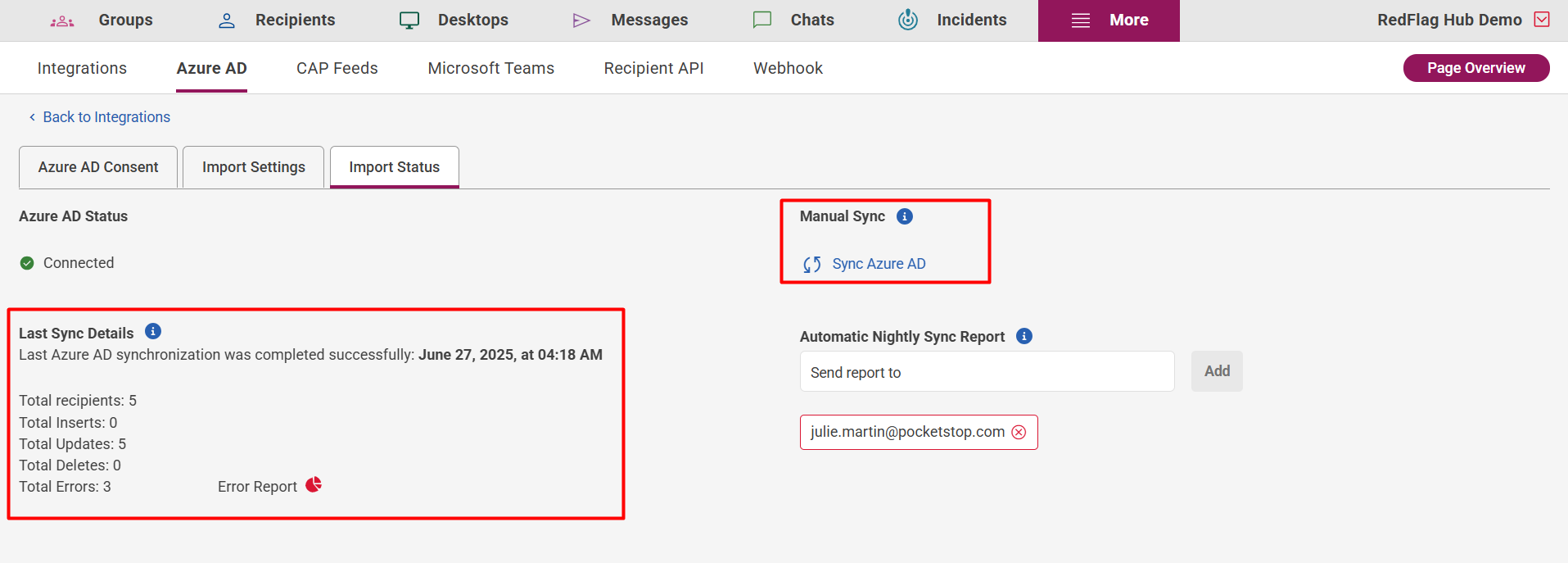
View Import Status and Perform Manual Sync
Under the Import Status tab, you can:
- View current connection status.
- See the date and time of the last sync.
- Download the error report, if applicable.
- Perform a manual sync (once per day).
- Update the email list for nightly sync notifications.
🛡️ Note: Nightly syncs run automatically around 2:00 AM CST, but this time can vary depending on other jobs running in RedFlag's backend. Manual syncs can be triggered if changes need to be reflected sooner, but only once per day.