
Microsoft OpenID Connect (OIDC) Single Sign On (SSO)
Overview
Microsoft Entra ID SSO uses OpenID Connect (OIDC) to let your users authenticate into RedFlag with their existing Microsoft 365 credentials. Once configured, users access RedFlag through the RedFlag Admin SSO enterprise app in your Microsoft tenant — no separate RedFlag passwords required.
Setup involves four steps:
- Step 1 — RedFlag enables SSO on your account and sends a registration email
- Step 2 — Your Microsoft 365 admin completes registration and grants consent
- Step 3 — Your admin assigns users or groups in Microsoft Entra ID and sets their role
- Step 4 — Users log in for the first time via myapps.microsoft.com
Enable Microsoft OIDC SSO
Contact RedFlag support to enable Microsoft Entra ID SSO for your account. Once enabled, RedFlag will send your Microsoft 365 administrator a registration invitation email.
IMPORTANT: Consent must be given by your Microsoft 365 administrator before any users can log in.
Complete Registration & Grant Consent
Your Microsoft 365 administrator will receive a registration email from RedFlag. If they are not the right person to grant consent, they can forward the email to the appropriate admin.
Administrator Steps
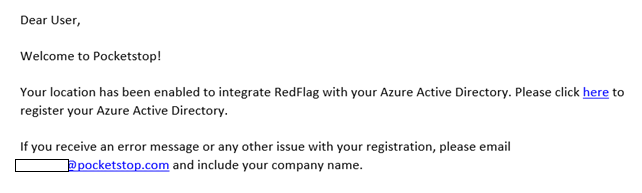
- Click the link in the email to begin the registration workflow. Email example:
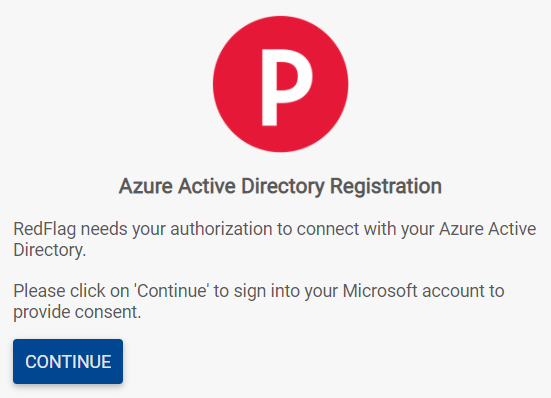
- Click Continue on the registration screen.
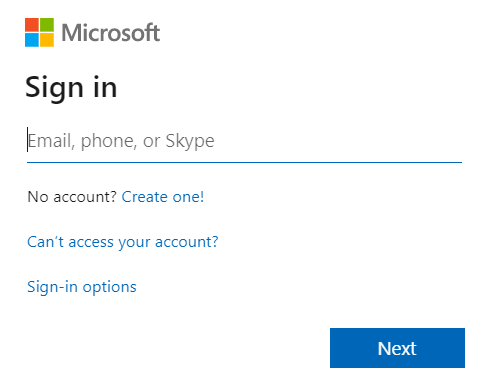
- Sign in with your Microsoft 365 administrator credentials. This page belongs to Microsoft — RedFlag does not have access to any credentials entered here.
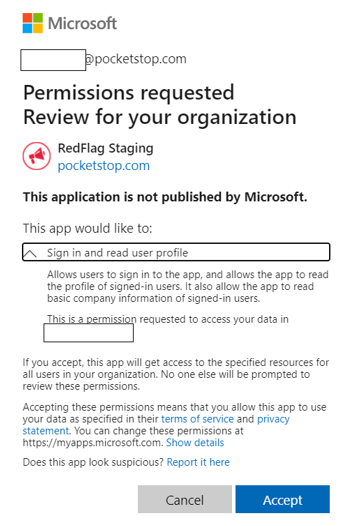
- Review the consent screen to see what access RedFlag is requesting, then click Accept to proceed (or Cancel to stop).
- After consent is granted, you will be redirected back to RedFlag. Verify the information and click Confirm to complete registration.
- Registration is complete. You can now manage users and their access levels in Microsoft Entra ID at https://portal.azure.com.
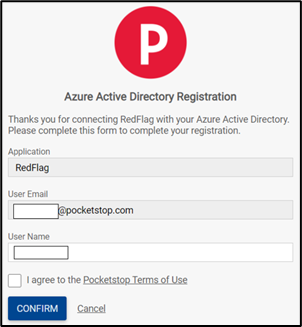
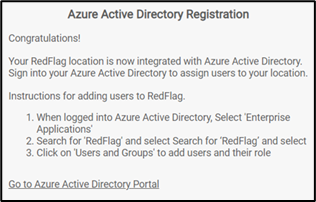
App Permission Required
The following Microsoft permission is required to enable SSO:
- Permission: User.Read
- Type: Delegated
- Reason: Enables user sign-on and allows RedFlag to read the user’s profile. This is required to pull the tenantId and provision the user just-in-time when logging in through SSO.
Assign Users or Groups in Microsoft Entra ID
Once registration is complete, your Microsoft 365 administrator assigns users or groups to the RedFlag Admin SSO enterprise app and sets their RedFlag role. Role types are pre-configured in the app — no additional setup is required.
Administrator Steps
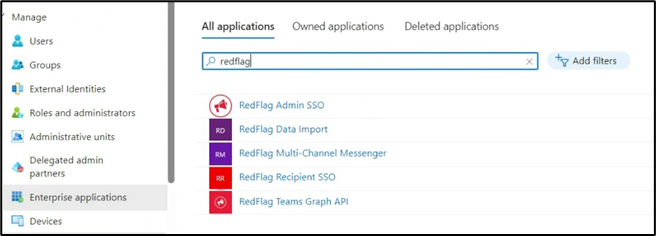
- In Microsoft Entra ID (https://portal.azure.com), go to Enterprise Applications in the left nav and search for RedFlag Admin SSO.
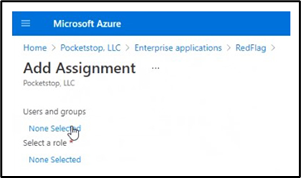
- Select RedFlag Admin SSO, then click Assign Users and Groups.
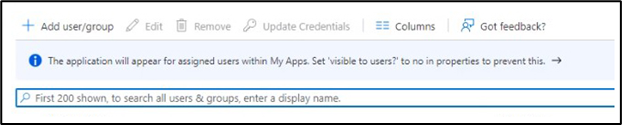
- Click Add user/group.
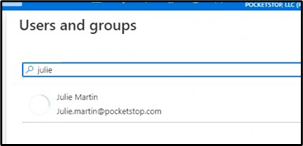
- Search for and select the users or groups you want to grant access to RedFlag.
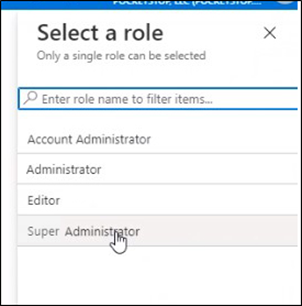
- Select the appropriate role type. The following roles are pre-configured in the app. See Users Role and Permissions >>
- Super Administrator — Highest level of access. At least one user must be assigned this role.
- Administrator
- IT Administrator
- Editor
- Chat Agent — The Chat Agent Only role is available exclusively for locations with 2-way Chats enabled and limits users to the Chats section only. To grant a standard user access to Chats, this must be configured within the platform after the user's first login.
- Account Administrator — Only available for users with access to multiple RedFlag locations.
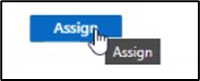
- Click Assign to complete.

Note: User additions, removals, and role changes must all be managed in Microsoft Entra ID. These cannot be edited from within RedFlag.
User Login
After users have been assigned in Microsoft Entra ID, they must log in for the first time through Microsoft:
- Go to https://myapps.microsoft.com.
- Search for RedFlag Admin SSO and click the app.
- Users will be logged directly into RedFlag.
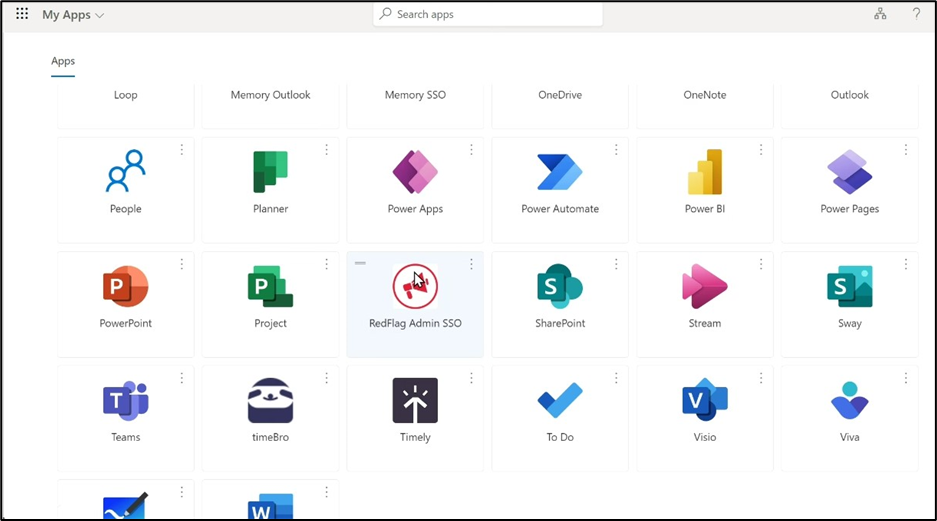
After the first login, users can sign in directly at https://portal.pocketstop.com going forward.
Note: If a user receives an error on first login, confirm their role is set to Super Administrator, Administrator, IT Administrator, or Editor. Users assigned the Default Admin role will receive an error.
Additional Feature Access
Some features must be assigned within RedFlag after the user's first login — they are not pulled from Microsoft Entra ID:
- Restricted Folders: Assign folder access from the user's profile in RedFlag.
- Group Access (Editor role only): Define which recipient groups the user can message.
- Chat Access: If 2-way chat is enabled, assign chat inboxes from the user's profile. Selecting All grants access to current and future inboxes.
To assign these, go to More > Users, click on the user's row, and edit their permissions as needed.