
Data Connector - How to Connect to BambooHR
Overview
RedFlag’s Data Connector Integration allows you to seamlessly sync recipient profile data from BambooHR into RedFlag—eliminating the need for manual uploads.
Once BambooHR is connected, you can map incoming fields to RedFlag profile fields. Data will sync automatically, keeping your recipient list up to date.
🛡️ Note: This feature must be enabled by RedFlag on the backend before configuration is available in your account.
🛡️ Note: RedFlag does not have visibility into your HRIS platform configuration, API settings, permissions, or endpoint setup. If you experience connection errors, missing data, permission issues, or endpoint-related errors, you must contact your HRIS provider for support. RedFlag can only display the data returned by the provider.
Requirements for BambooHR Connection
- Subdomain – The unique portion of your BambooHR URL used to access your account (e.g.,
mycompanyinhttps://mycompany.bamboohr.com). - API Key – Required for authentication during setup.
- Configure BambooHR in RedFlag’s Data Connector
How to Find Your API Key in BambooHR
🛡️ Note: It’s recommended that a person with the Account Owner role creates the API key for full read/write access.
- Log in to your BambooHR account.
- Click on your profile in the top-right corner.
- Select API Keys from the dropdown menu.
- If no API key exists, click Add New Key to create one.
- Copy your API Key and Subdomain to enter in RedFlag’s Data Connector.
Pre-existing Access Levels
BambooHR provides the following pre-existing access levels:
- Employee Access Level – For employees who should only see their own data (not recommended for API key owners).
- Manager Access Level – For managers who can view limited team data (not recommended for API key owners).
- Custom Access Level – Allows tailored data visibility (recommended for API key owner if no Account Owner role is available).
To review these:
- Click the Settings (⚙️) icon at the top right.
- Select Access Levels from the left navigation.
- Click the + button next to Levels to view or add access types.
How to Create Custom Access Levels
To create and assign a custom access level for integration users:
- Log in as an Account Owner or Admin.
- Go to Settings (⚙️) → Access Levels.
- Click + beside Levels and select Custom Access Level.
- Enter a name for the access level and click Next.
- Customize visibility and permissions → Next Step.
- Under What this Access Level Can See, ensure you’re in See About Other Employees.
- Select the appropriate data permissions.
- Save changes and assign users:
- Click the custom access level name.
- Select Add Employee, choose the user, and click Done.
Once assigned, the user can create API keys with the chosen access scope.
Configure BambooHR in RedFlag’s Data Connector
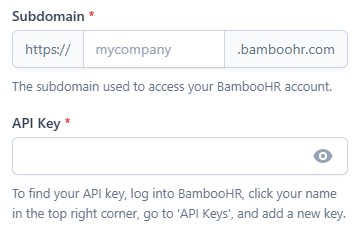
Now that your custom access and API key are ready:
- Open RedFlag’s Data Connector.
- Enter your Subdomain and API Key credentials.
- Save the configuration.
Your BambooHR account is now connected 🎉 After connecting, complete configuration to start importing your data.