
Microsoft Teams App Not Connecting to Recipients
Overview
If the Microsoft Teams app is not being installed for your recipients in RedFlag — even after sending the consent email and granting permissions — there may be a configuration issue within Microsoft Entra ID (Azure) or the Microsoft Teams Admin Center.
This article outlines the key areas to review to ensure the Teams integration is configured properly and recipients are able to connect successfully.
If a specific recipient is not connected:
- Go to Recipients in RedFlag.
- Open the recipient’s profile.
- Review the status and any error message displayed under the Teams channel.

Verify App Permissions in Azure AD
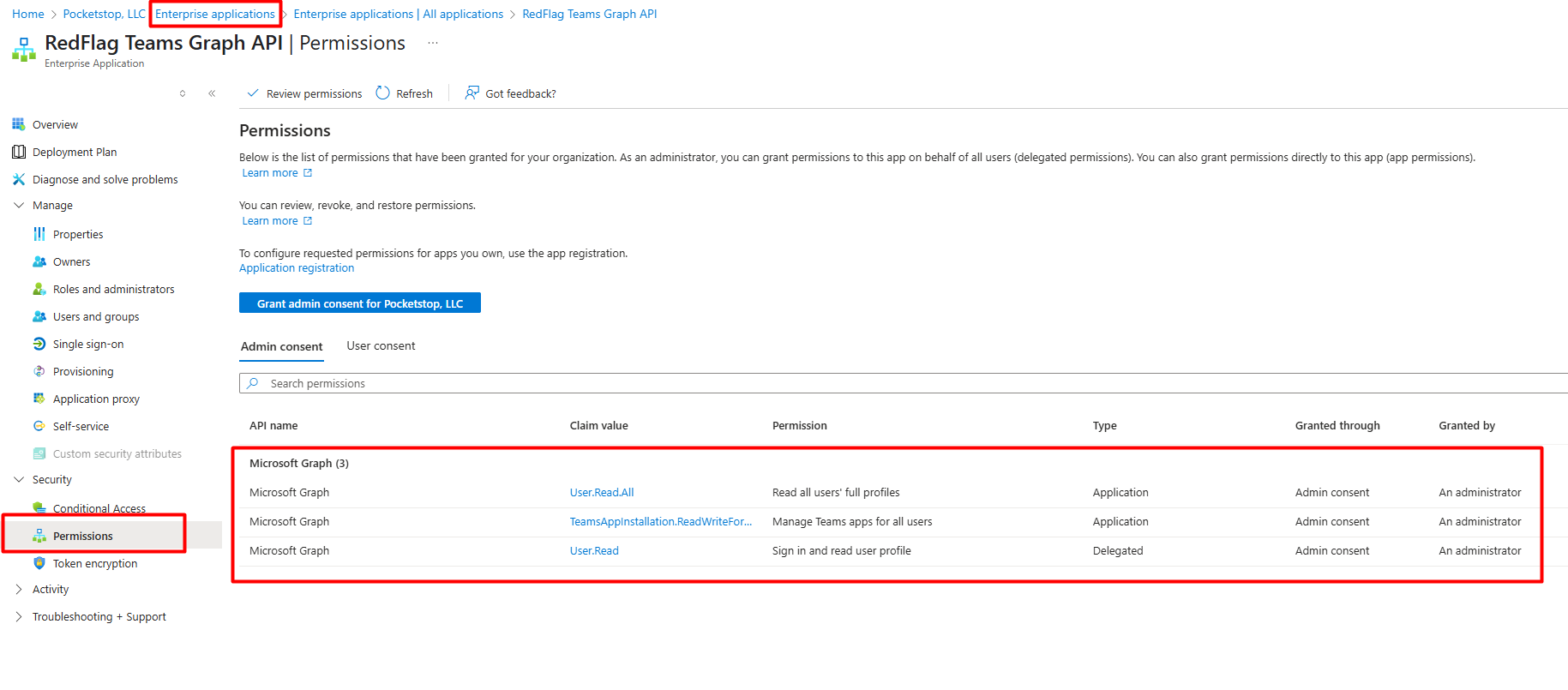
- Navigate to Azure Active Directory > Enterprise Applications.
- Select RedFlag Teams Graph API.
- Go to Permissions under the “Security” section on the left-hand panel.
- Ensure the following permissions have been granted with Admin Consent:
- User.Read.All (Application permission): Allows the app to read all users' full profiles.
- TeamsAppInstallation.ReadWriteForUser.All (Application permission): Allows the app to manage Teams apps for all users.
- User.Read (Delegated permission): Allows users to sign in and read their own profile.
🛡️ Note: These should appear as shown in the screenshot below for proper configuration:
Confirm RedFlag App Availability in Teams Admin Center
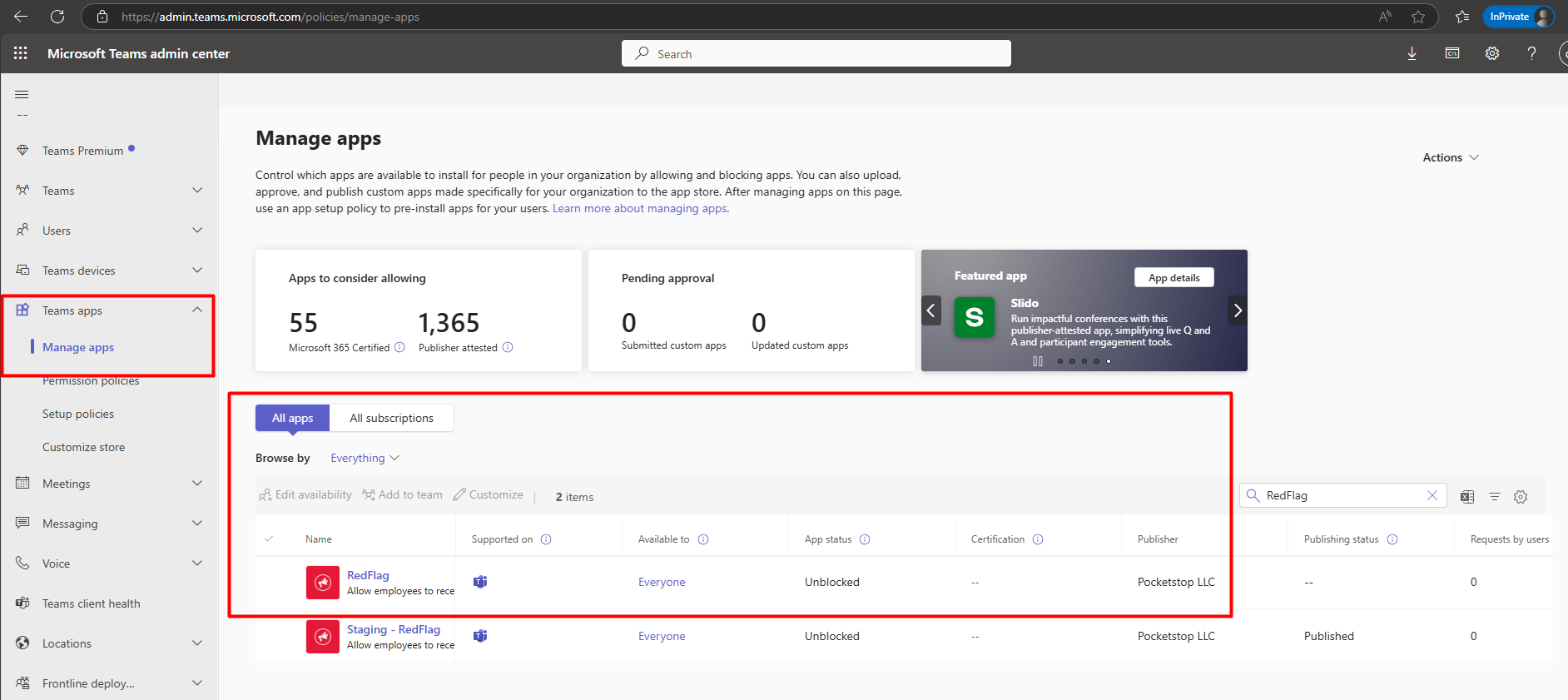
- Open the Microsoft Teams Admin Center: https://admin.teams.microsoft.com.
- Go to Teams apps > Manage apps.
- Search for RedFlag (and Staging - RedFlag if applicable).
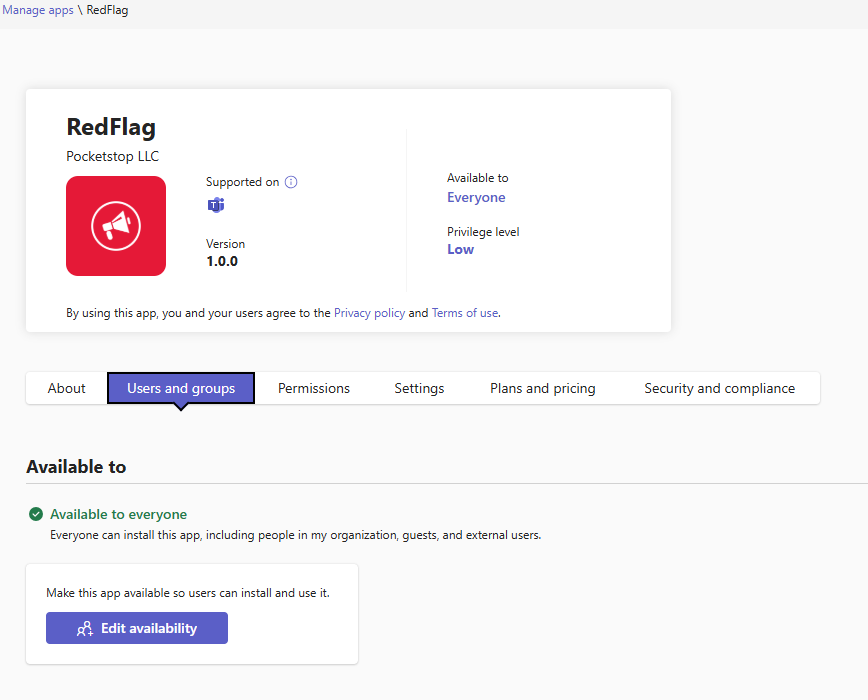
- Verify the following:
- App status is Unblocked
- App is Available to: Everyone
🛡️ Note: If the app is not unblocked or not available to everyone, users will not receive Teams messages.
Still Not Working?
If all configurations match and the issue persists, please contact our Support team with a screenshot of your Azure app permissions and Teams app availability settings for further assistance.