
Microsoft Excel Add-in
To bulk upload your recipients directly from Excel, use the RedFlag Add-in.
Your Microsoft admin can install add-ins from the Admin Center to all, or limited, Microsoft 365 users. To learn more on deploying add-ins in the Admin Center, click here: https://docs.microsoft.com/en-us/microsoft-365/admin/manage/manage-deployment-of-add-ins?view=o365-worldwide
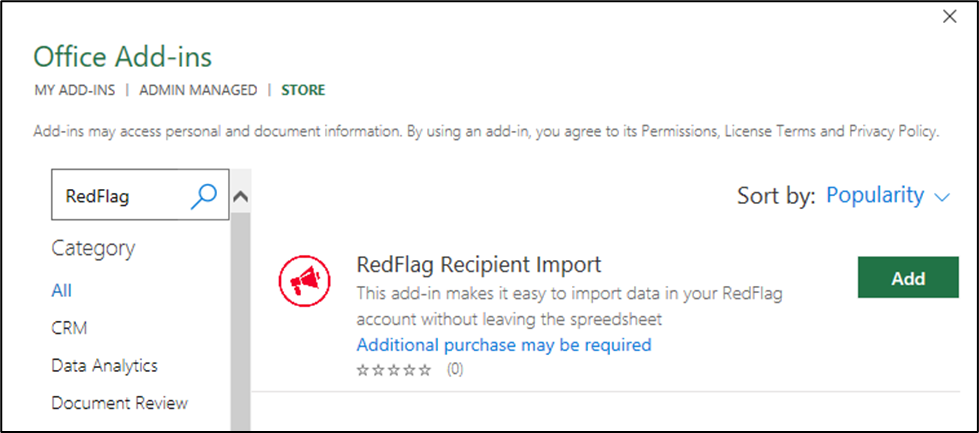
To enable the Excel RedFlag Add-in, select “Insert” on the menu bar, and then click on the “Get Add-ins” button in the “Add-ins” group.

Search for RedFlag and “Add” the “RedFlag Recipient Import” app.
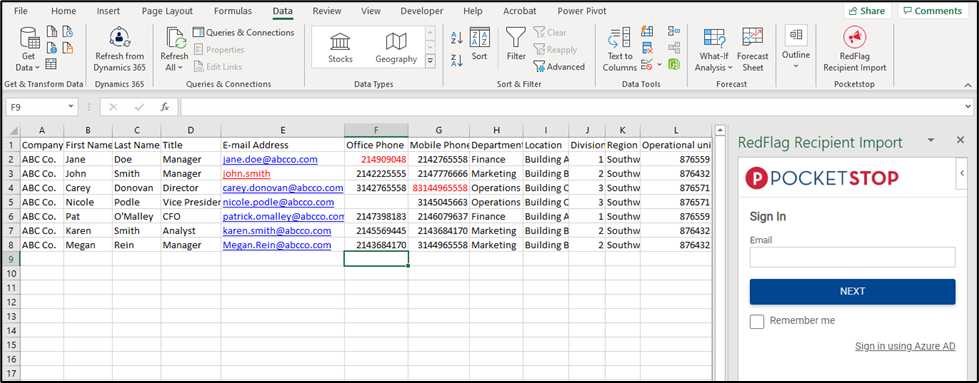
Open the spreadsheet with your recipients.
Select “Data” on the menu bar and then click on the “RedFlag Recipient Import”.

Log in with your RedFlag credentials.
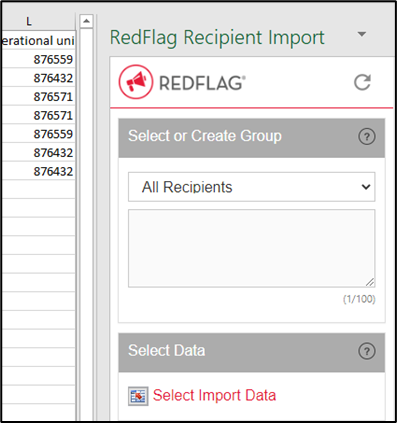
Select the Group to upload your data to or create a new group. Then select the data to import.
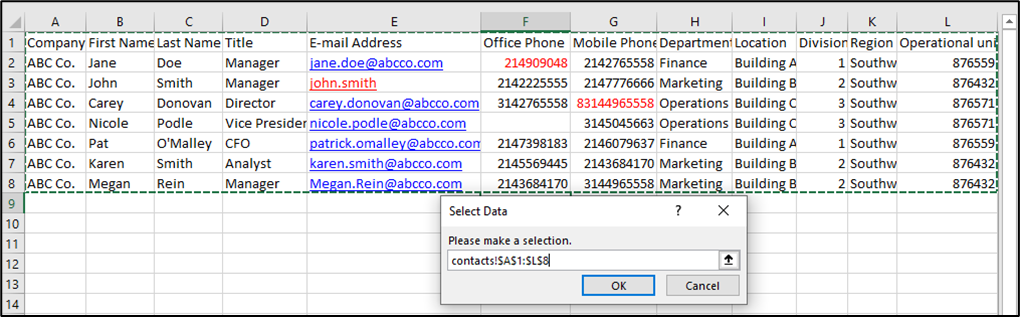
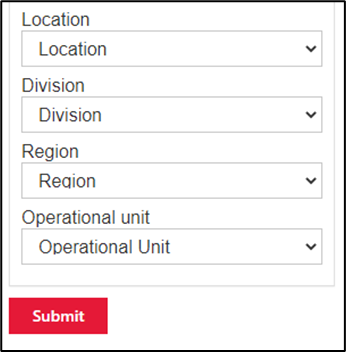
Select if your if your first row is a header row or not. Then map all selected columns to the correct data fields. If you have columns selected that you do not want to import, select “Do not import this column”.
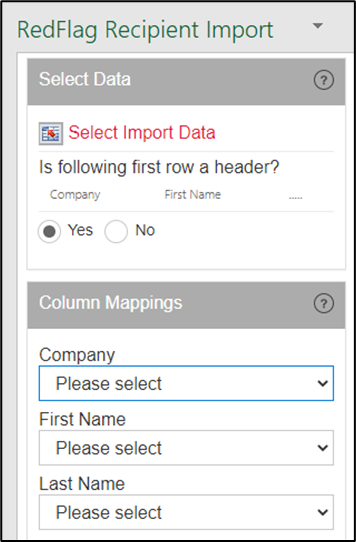
After all columns are mapped, click Submit.
RedFlag will send the user an email after importing the recipients. The email will detail if there were any errors in the file.