
Data Connector - How to Connect to SAP Success Factors
Overview
RedFlag’s Data Connector Integration allows you to seamlessly sync recipient profile data from SAP SuccessFactors into RedFlag—eliminating the need for manual uploads.
Once SAP SuccessFactors is connected, you can map incoming fields to RedFlag profile fields. Data will sync automatically, keeping your recipient list up to date.
🛡️ Note: This feature must be enabled by RedFlag on the backend before configuration is available in your account.
🛡️ Note: RedFlag does not have visibility into your HRIS platform configuration, API settings, permissions, or endpoint setup. If you experience connection errors, missing data, permission issues, or endpoint-related errors, you must contact your HRIS provider for support. RedFlag can only display the data returned by the provider.
Requirements for SAP SuccessFactors Connection
- Register a Client Application
- Generate API Credentials (Client ID and Secret)
- Locate API Server URL and Company ID
- Configure SAP SuccessFactors in RedFlag’s Data Connector
Register a Client Application
- Sign in to SAP SuccessFactors as an administrator.
- Navigate to Admin Center → API Center → OAuth Configuration for OData.
- Choose Register Client Application.
- Complete the form:
- Company: Your company name
- Application Name: Unique name for the OAuth client
- Application URL: URL of the client’s information page (optional; not required for this setup)
- X-509 Certificate: Upload or generate an OAuth 2.0 certificate (see SAP’s documentation for generation steps)
- Click Register to save.
- View the generated API Key under Registered Applications.
Configure SAP SuccessFactors in RedFlag’s Data Connector
🛡️ Note: Ensure you have generated and securely stored your Client ID, Secret, and API Server details before proceeding.
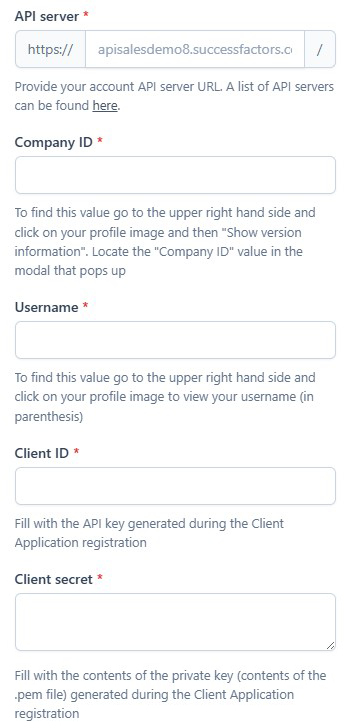
- Open RedFlag’s Data Connector.
- Paste your credentials:
- Client ID: API key generated during client registration
- Client Secret: Private key contents from the
.pemfile - API Server: Your SAP SuccessFactors API server URL
- Company ID: Found under Profile → Show Version Information → Company ID
- Username: Found under Profile → Username (in parentheses)
- Click Save.
- Select Authorize to finalize authentication.
Your SAP SuccessFactors account is now connected 🎉 After connecting, complete configuration to start importing your data.